

Your purchases and transactions
Your dashboard has two screens that show what you’ve bought:
- Purchases — every product you’ve purchased, with its status and access details.
- Transactions — every charge, refund, dispute or adjustment that’s gone through your card.
Purchases
Section titled “Purchases”
Each card shows the store, product, current price/plan, status (active, trialing, past due, cancelled, expired), renewal date and a link into the purchase detail.
Tabs let you switch between Active purchases (the ones still giving you access) and Expired ones (cancelled or finished).
Clicking an purchase takes you to its detail page where you can:
- Access the Telegram channel (open the corresponding app).
- Open the Stripe portal to manage the subscription, update your payment method, or download invoices (three separate buttons).
- Leave or update a review on the store.
- See a precise timeline of when access started and when it will end.
Transactions
Section titled “Transactions”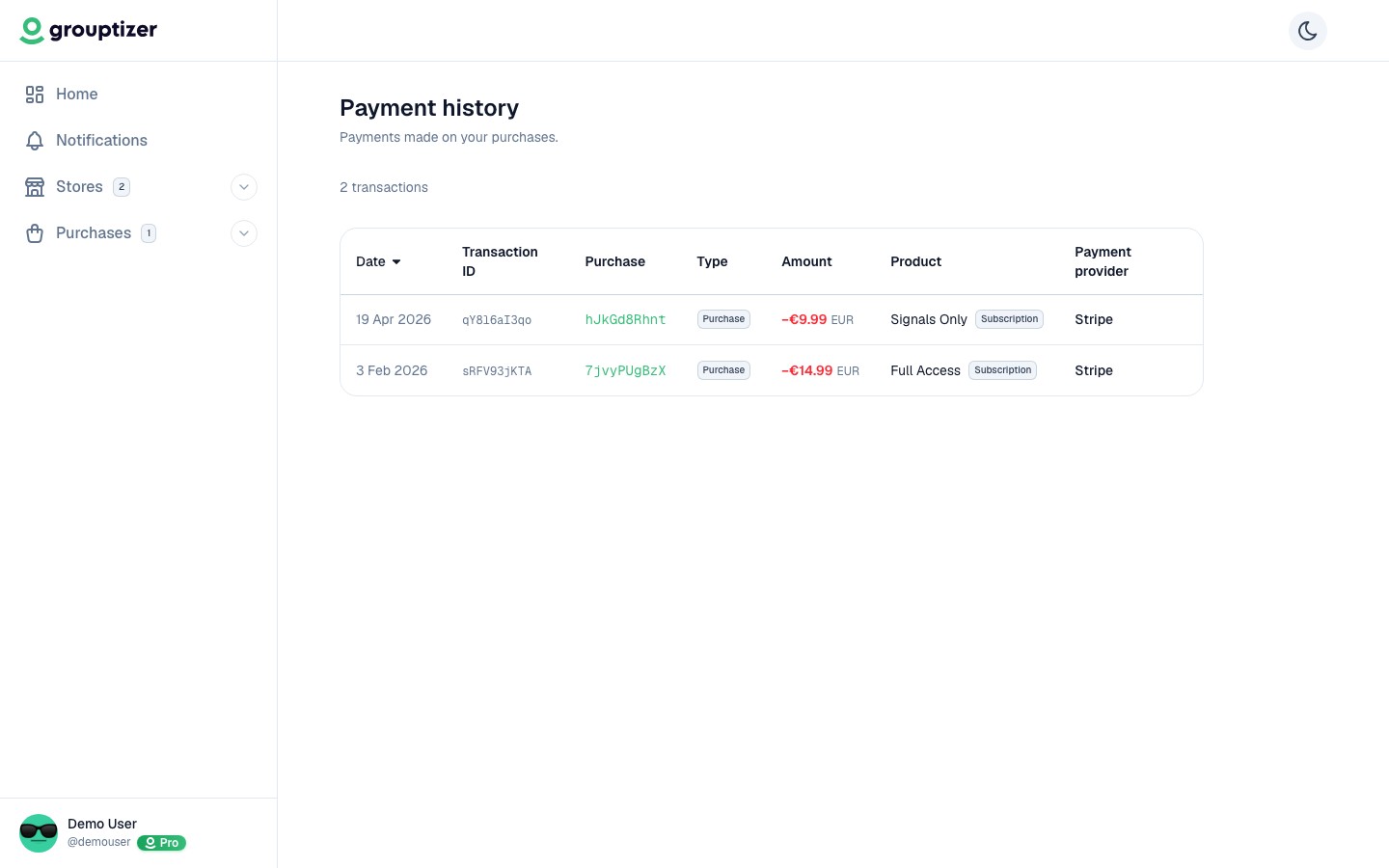
A list of every transaction your account has been part of, with:
- Date.
- Store and product.
- Amount and currency.
- Type (purchase, trial, refund, dispute, etc.).
- Payment method used.
You can filter by store and date range to find a specific charge.
Where to download invoices
Section titled “Where to download invoices”Invoices for individual charges live in the Stripe customer portal of the store you bought from. Open the purchase and click Download invoices in the Stripe portal block.