

Issue a refund
Refunds are issued directly from your Grouptizer dashboard — no need to open Stripe. Once you submit the refund, Grouptizer records it on both sides and notifies the buyer. Cancelling the buyer’s access is a separate step you take from the same screen.
-
Receive the request. Buyers reach you through the channels you publish in Legal and contact details. They should include their Transaction ID (a 12-character string from their Payment history). If they don’t, ask for it before doing anything else — it’s how you find the right transaction.
-
Find the customer in your dashboard. Open Customers and use the Transaction ID filter to locate the matching customer in one search.
-
Open the customer detail page and find the transaction. Scroll to the transactions table. Each row shows the Transaction ID, amount and type. On the row you want, click Refund in the Actions column.
-
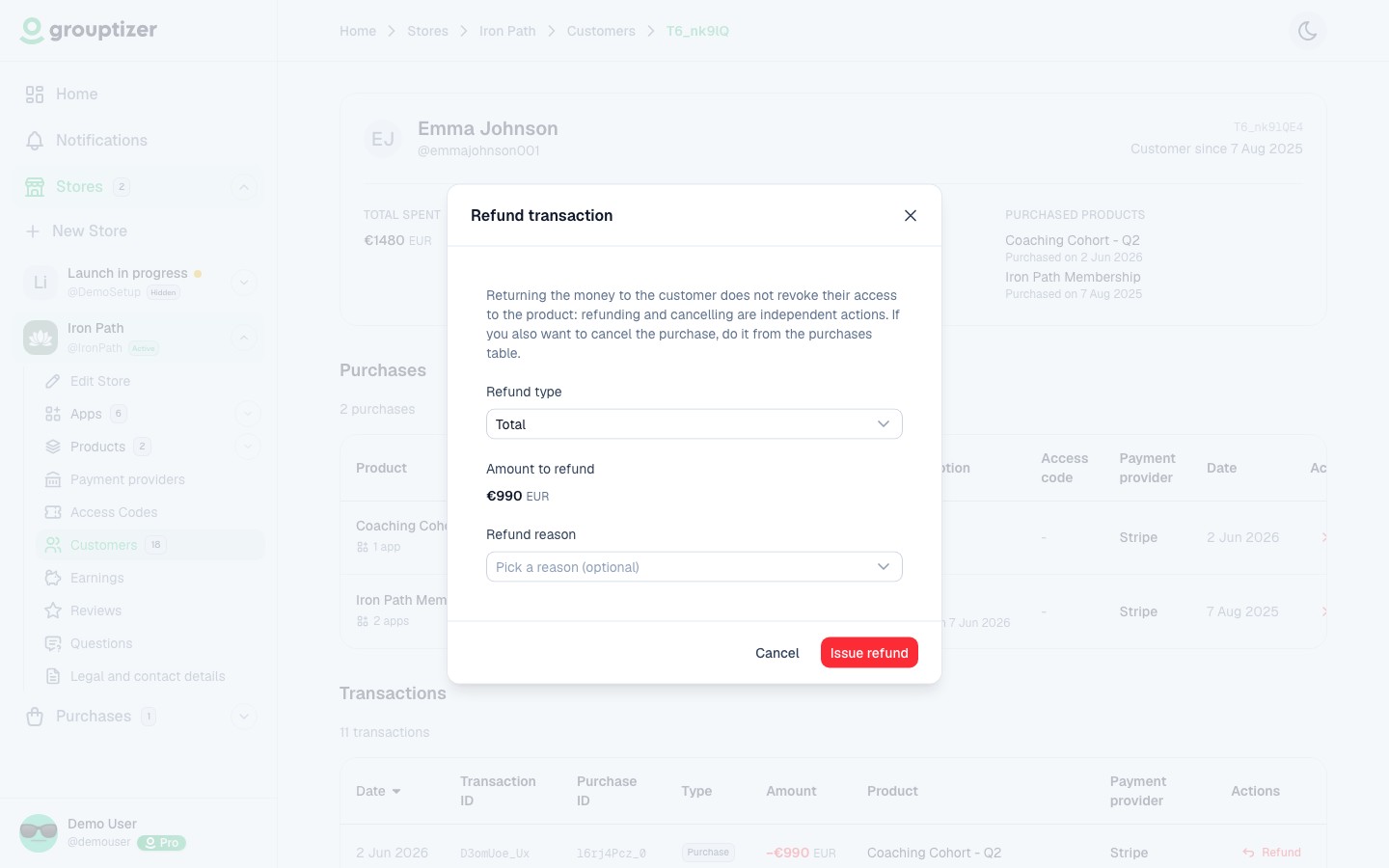
Fill in the refund modal. Pick Total to return the full amount, or Partial and enter the amount to refund. Optionally pick a reason (Duplicate charge, Fraudulent, Requested by the customer) and click Issue refund.
-
Confirmation is automatic. Grouptizer:
- Marks the original transaction with a Refunded badge and records a Refund issued entry on your earnings.
- Records a Refund received entry on the buyer’s Payment history and emails them.
You don’t need to message them again, but a short, courteous reply on the original channel is good practice. The money returns to the buyer’s card via the original payment provider in 5–10 business days.
-
Decide whether to cancel access. Refund and access are independent. From the Purchases table on the same customer detail page, click Cancel on the affected purchase if you want to revoke access. For subscriptions you can choose Immediately or At the end of the period; for one-off purchases and access codes the only option is immediate. It’s reasonable to leave access running until the end of a paid period when a subscriber asks to stop renewing, and equally reasonable to revoke it right away on a goodwill refund. See Cancel a purchase.
What Grouptizer does NOT do
Section titled “What Grouptizer does NOT do”- A refund does not revoke the buyer’s access on its own — you do that from the Purchases table.
- A refund does not cancel a recurring subscription — the buyer keeps being charged on the next renewal unless you also cancel.
- The payment provider’s processing fee is not returned to you on a refund — that’s the provider’s policy.
Partial refunds
Section titled “Partial refunds”You can refund any amount up to the original transaction. Grouptizer records it as a Refund issued entry for the partial amount and the buyer sees a matching Refund received entry. Access isn’t affected; a partial refund where the buyer keeps full access is a valid pattern.
Refund policy
Section titled “Refund policy”Grouptizer doesn’t impose a refund policy — you decide your own. Set it under Legal and contact details → Refund policy: you choose whether you accept refunds and the refund window, and Grouptizer publishes it as a Refunds page on your store. Restating it in your store’s FAQ is still a good idea. See Legal and contact details.