

Legal and contact details
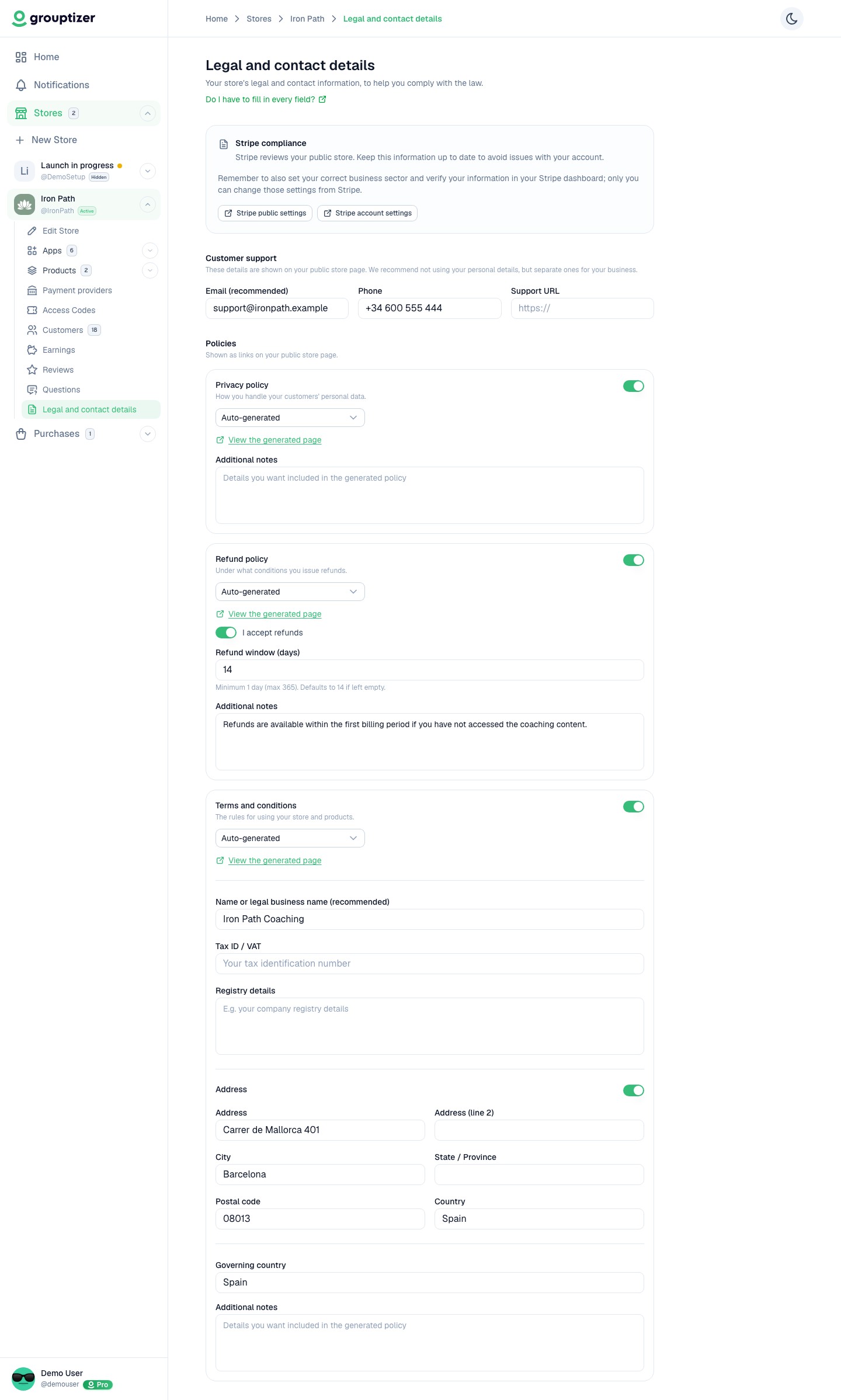
Every store has a Legal and contact details screen where you set your support contacts, your legal identity, and the privacy, refund and terms policies that appear on your public store page. Keeping it complete serves two purposes: meeting your own legal obligations as a seller, and preventing Stripe from suspending your connected account for a store without policies.
Do I have to fill in every field?
Section titled “Do I have to fill in every field?”Grouptizer doesn’t force any of them: you can leave them all blank and your store still works. What you actually need to publish depends on the laws of your country and the kind of business you run, and this screen is designed to make that compliance straightforward when you need it.
In practice, what Stripe expects to see does act as required: leave it blank and you risk Stripe suspending your connected account and cutting off your payouts. The Stripe compliance box flags when this applies to your store and what is missing — see further down this page.
Where to find it
Section titled “Where to find it”Open a store and click Legal and contact details in the store’s sidebar. The breadcrumb is Stores › your store › Legal and contact details.
Customer support
Section titled “Customer support”Set the Email, Phone and Support URL buyers use to reach you. These are shown on your public store page, so we recommend not using your personal details, but separate ones for your business. Empty fields are not shown.
The support Email is also the address the generated policies point buyers to for refund requests, privacy questions and any matter related to their purchase.
Policies
Section titled “Policies”There are three policies — Privacy policy, Refund policy and Terms and conditions. Each one works the same way:
- A switch to turn the policy on or off. All three are on by default.
- A source choice: Auto-generated (Grouptizer writes the text from your inputs) or Use my own URL (you link your own page; only
http/httpslinks are accepted). - View the generated page opens the public page so you can see exactly what buyers read.
- Additional notes lets you append extra clauses to the generated text.
Privacy policy
Section titled “Privacy policy”Covers how you handle your customers’ personal data. The generated text explains what data is collected, why, how long it is kept and the rights buyers have.
Refund policy
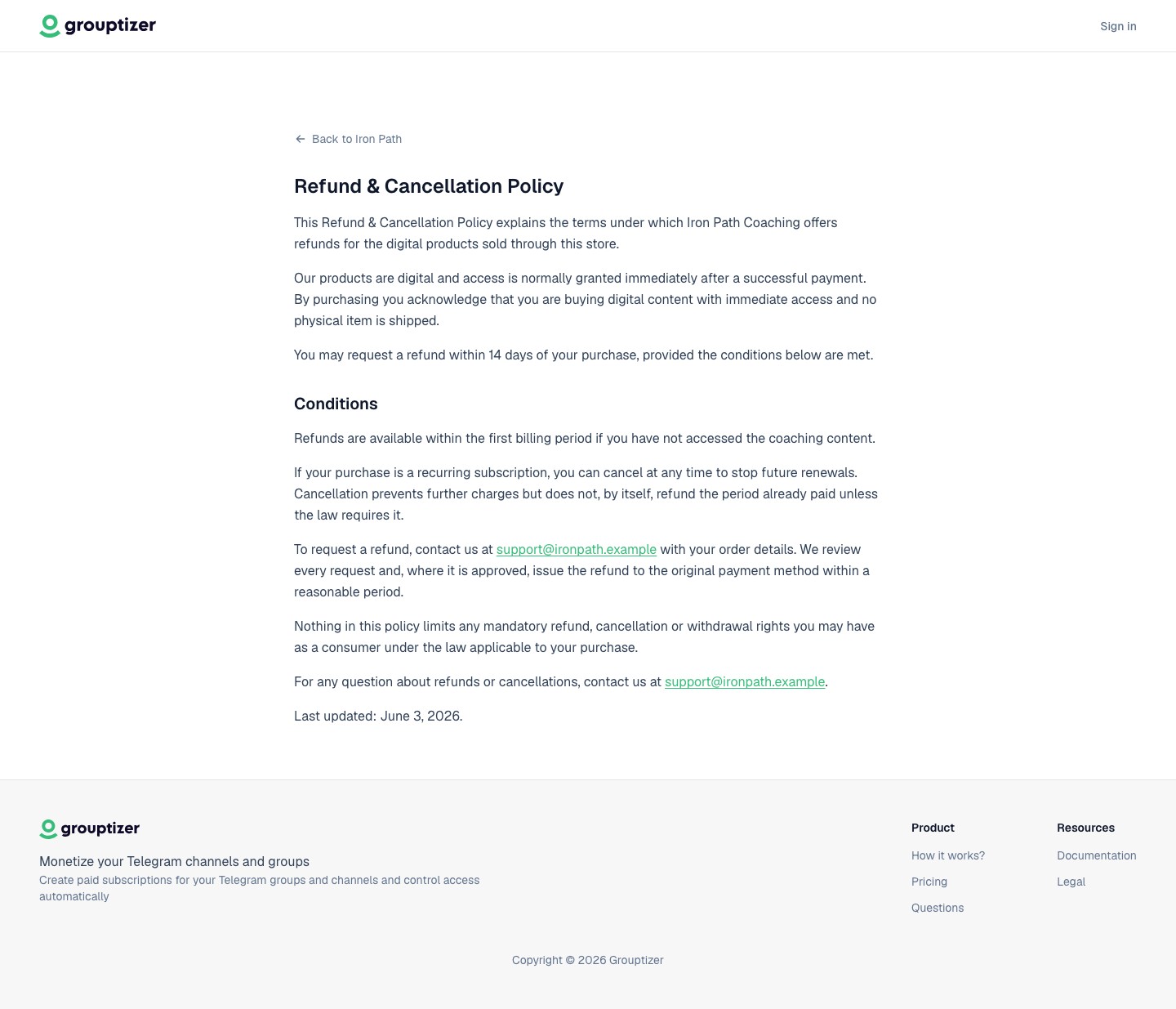
Section titled “Refund policy”Covers under what conditions you issue refunds.
- If you leave I accept refunds unchecked, the page states that your store does not accept refunds. This is the default.
- If you check I accept refunds, set the Refund window (days) — minimum 1, maximum 365, defaults to 14 if left empty.
Either way, the generated text preserves the mandatory refund and withdrawal rights buyers have by law; your policy can be stricter only where the law allows.
Terms and conditions
Section titled “Terms and conditions”The rules for using your store and products. Set the Governing country. When the terms are auto-generated, an identity block is published with:
- Name or legal business name
- Tax ID / VAT
- Registry details
This identity block is what makes you identifiable as the seller, which both consumer law and Stripe expect.
Address
Section titled “Address”The Address section is off by default — your address is not published unless you turn it on. Switch it on only if you need or want to disclose a postal address; then fill in the address lines, city, state, postal code and country.
What gets published and where
Section titled “What gets published and where”Active policies appear on your public store page as Privacy, Refunds and Terms links, alongside a Contact block built from your support details. The generated pages live at:
grouptizer.com/your-store/privacygrouptizer.com/your-store/refundgrouptizer.com/your-store/terms
These pages are set to noindex, so they are reachable from your store but not indexed by search engines.
Defaults at a glance
Section titled “Defaults at a glance”- Privacy, refund and terms policies: on.
- Refund policy: set to no refunds until you opt in.
- Address: hidden.
What the generated text covers
Section titled “What the generated text covers”The generated text is digital-only and channel-agnostic: it describes selling access to digital content without naming a specific platform. It always preserves the buyer’s mandatory consumer rights, and it adds a risk disclaimer when your store uses higher-risk categories:
- Financial categories (trading, crypto, investing, taxation) get a “no financial advice” risk warning.
- Advisory categories (body & mind, religion & spirituality, business, marketing, employment, studying) get a general “not professional advice” notice.
The text is produced in the language your store is using.
Stripe compliance
Section titled “Stripe compliance”Stripe reviews your public store. A Stripe compliance box on this screen tells you what to complete. It turns into a warning, a dot next to Legal and contact details in the sidebar, and a reminder on the store overview only when all of these are true:
- There is a gap in your details, and
- your store uses categories Stripe treats as higher risk, and
- Stripe is connected in live mode.
When it warns, it lists what to complete: the customer support email, turning on Privacy policy, Refund policy and Terms and conditions, and filling Name or legal business name under the terms. Completing these reduces the risk of Stripe suspending your account.
Remember to also set your correct business sector and verify your information in your Stripe dashboard; only you can change those settings from Stripe.
This is not legal advice
Section titled “This is not legal advice”The generated policies are a convenience to help you start. They are not legal advice and are not guaranteed to be sufficient for your specific situation, sector or country. You are responsible for reviewing and adapting them, and for the consequences of what you publish. See the Grouptizer terms of service and privacy policy for how this responsibility is allocated.