

Generate and distribute access codes
Generating an access code creates a unique string you can hand out to give someone free access to a product. You distribute the codes yourself — Grouptizer doesn’t email them on your behalf.
- Open your store and go to Access codes.
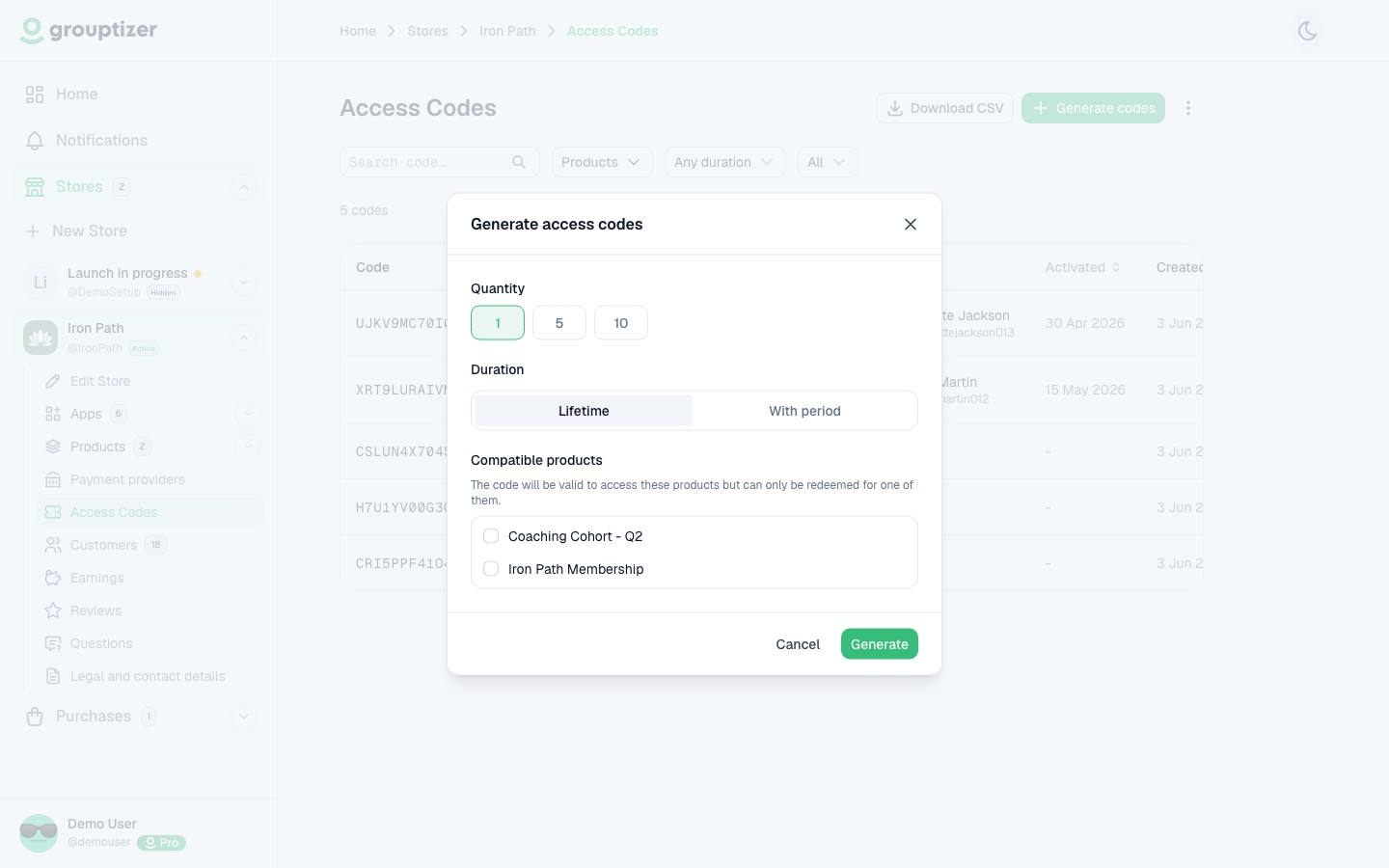
- Click Generate codes.
- Configure the batch:
- Quantity — 1, 5 or 10 codes per batch.
- Duration — lifetime, or a fixed period (days, months, or years).
- Compatible products — pick one or more products this batch can unlock. The buyer redeems on one; the code is consumed after that.
- Confirm. The codes are generated and a CSV with them is downloaded for your own use and distribution.
On the product side
Section titled “On the product side”For an access code to be redeemable on a product, that product must have Allow access codes enabled in its settings. If you don’t see a product in the picker when generating, it’s because access codes are off on that product.
Distributing codes
Section titled “Distributing codes”You decide how to deliver them — email, DM, paste in a Telegram message, give in person. The CSV with the codes is for your own use and distribution.
Tracking redemption
Section titled “Tracking redemption”The Access codes screen lists every code with its status:
- Unused — generated, not redeemed yet.
- Redeemed — used by a buyer; the buyer’s name is shown.
You can:
- Filter by status, duration or compatible products.
- Search for a specific code.
- Delete unused codes individually, or bulk-delete all unused codes from the danger zone at the bottom.
Expiration
Section titled “Expiration”When a time-limited code’s period is up, access is revoked automatically and the purchase is marked as expired. The code itself stays in the redeemed list as historical record.