

View your customers
Every buyer who purchased from your store appears on the Customers screen. From there you can drill into a customer to see their purchases, transactions and payment methods.
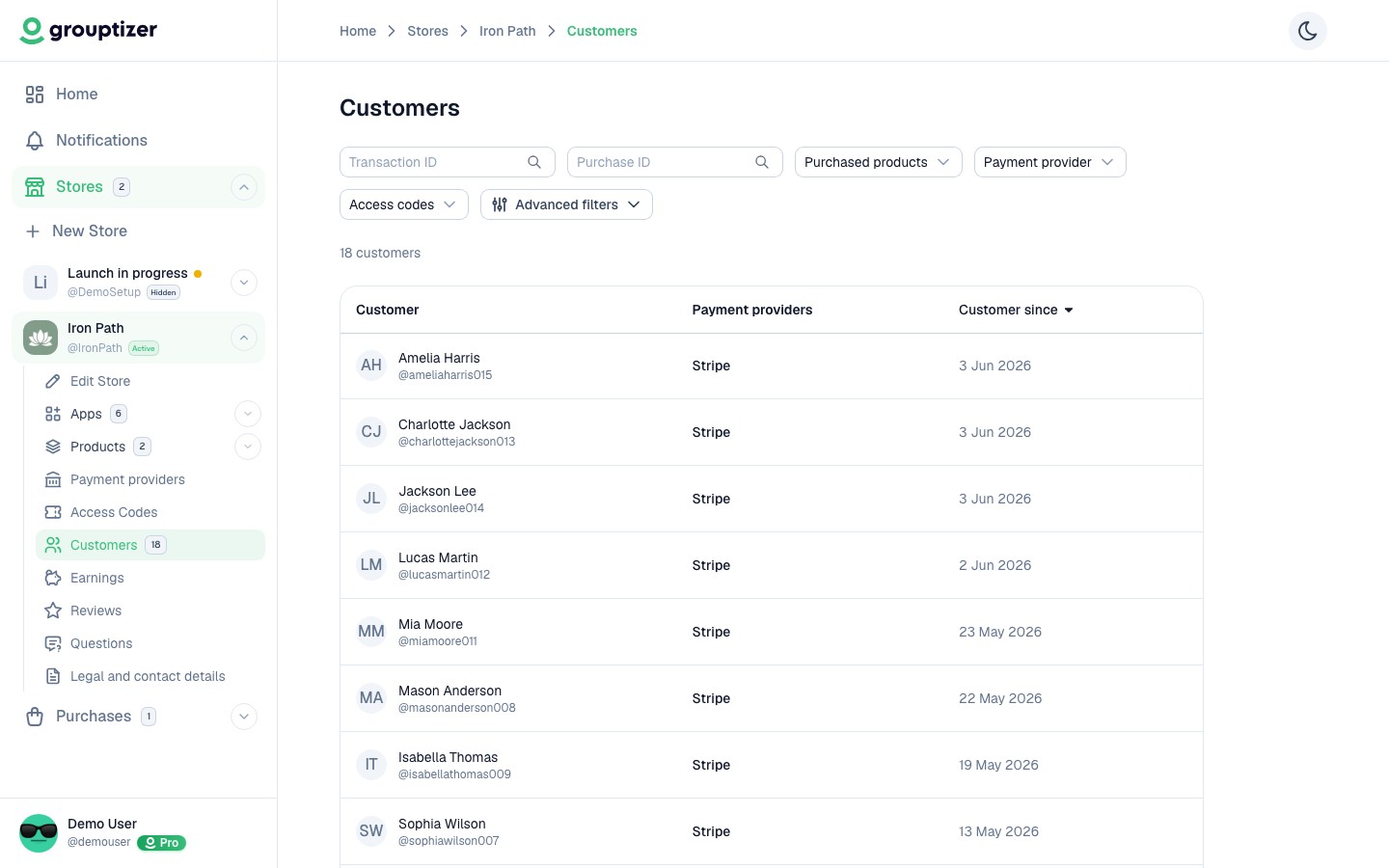
What the list shows
Section titled “What the list shows”Each row in the list shows:
- Customer — name and avatar.
- Payment providers — the providers this customer has used.
- Customer since — date of their first purchase.
Filters and search
Section titled “Filters and search”- Search by name, email or Grouptizer ID.
- Filter by product purchased, payment provider, or whether they used an access code.
- Sort by most recent or oldest customer.
Customer detail
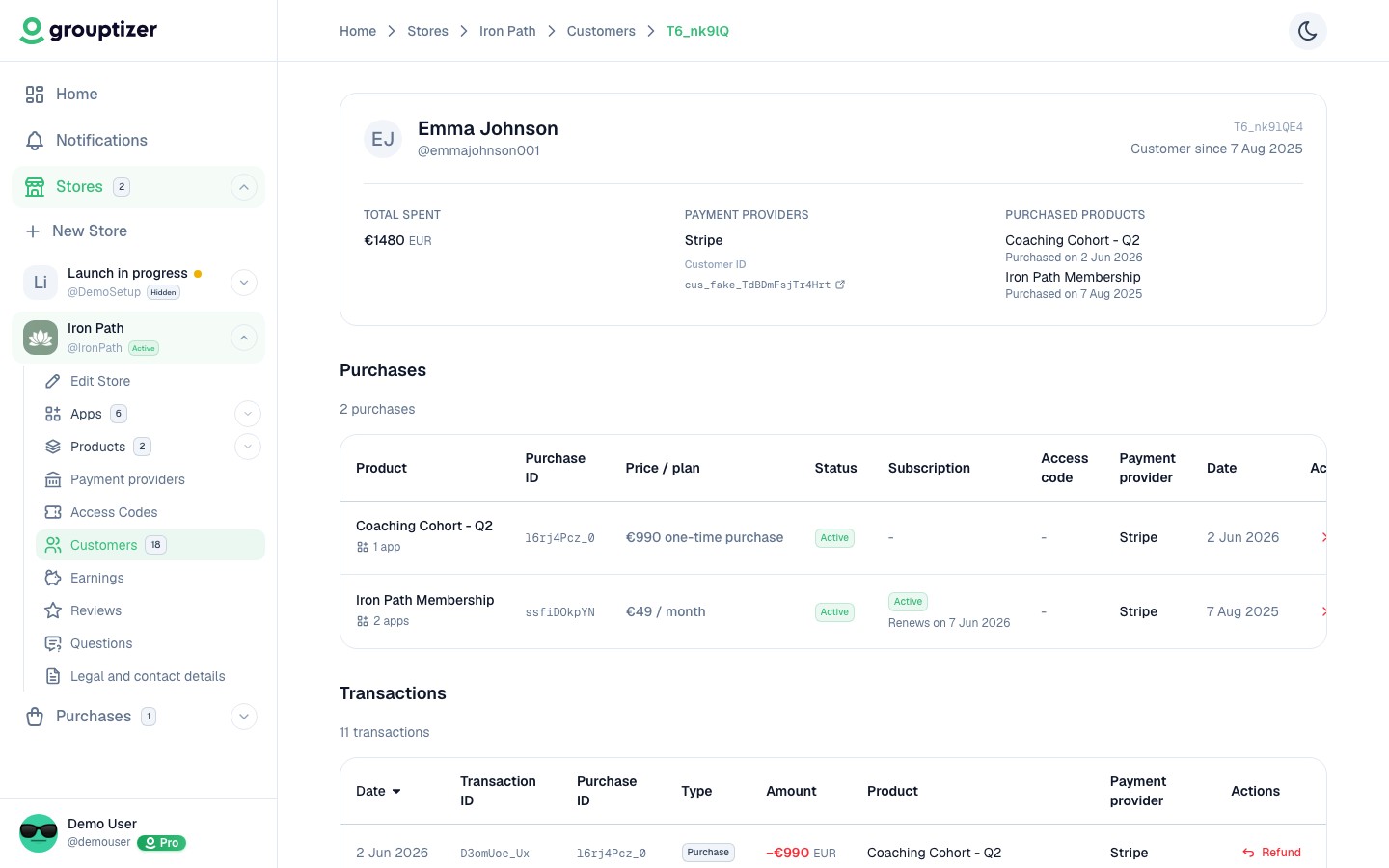
Section titled “Customer detail”Click a customer to open their full record:
- Purchases — every product they bought, status, payment method, dates.
- Transactions — every charge, refund, dispute or adjustment tied to them.
- Payment methods — credit cards or other Stripe payment methods on file (last digits only — Grouptizer never sees the full number).
Cancel a purchase
Section titled “Cancel a purchase”You can cancel any active purchase from the customer detail screen. Cancelling revokes the customer’s access to the product — it does not refund money. Refunds are a separate action in Stripe (see Issue a refund).
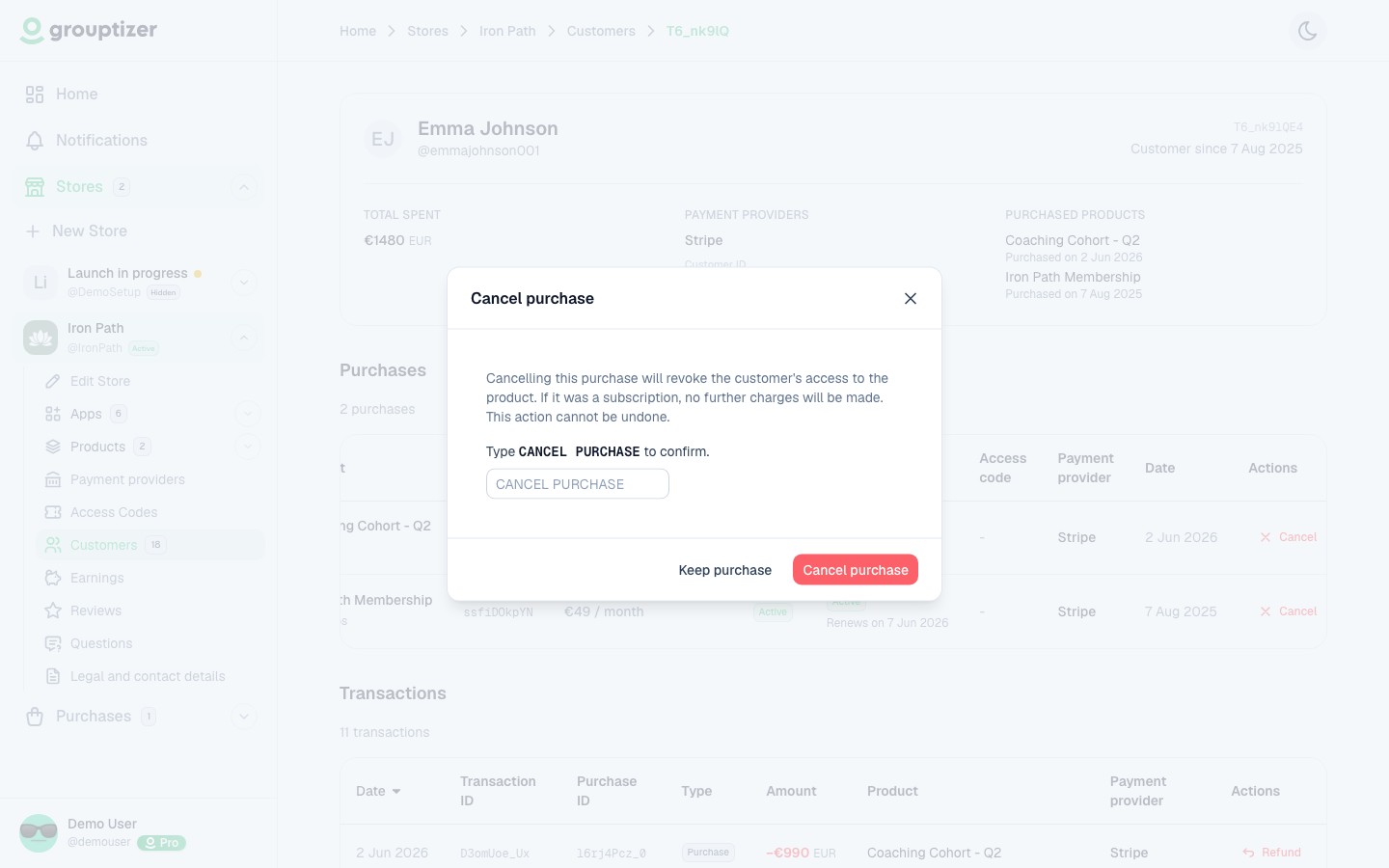
The Purchases table has an Actions column with a Cancel button on every active row. Clicking it opens a confirmation modal.
The modal warns:
Cancelling this purchase will revoke the customer’s access to the product. If it was a subscription, no further charges will be made. This action cannot be undone.
To confirm, you have to type CANCEL PURCHASE exactly into the confirmation input. Then Cancel purchase becomes available; Keep purchase closes the modal without changes.
One-off purchases and access codes
Section titled “One-off purchases and access codes”For a one-off purchase or an access-code purchase (lifetime or with expiry), the modal only offers immediate cancellation — there’s no period to wait for. Access is revoked at once and the bot removes the customer from the Telegram channel or group. Redeemed access codes stay in the Access codes list as historical record.
Subscriptions
Section titled “Subscriptions”For a live subscription (Trialing, Active or Past due) the modal shows a When to cancel block with two options:
- Immediately — access is revoked instantly.
- At the end of the period — access is kept until the current period’s end date, no further charges are made.
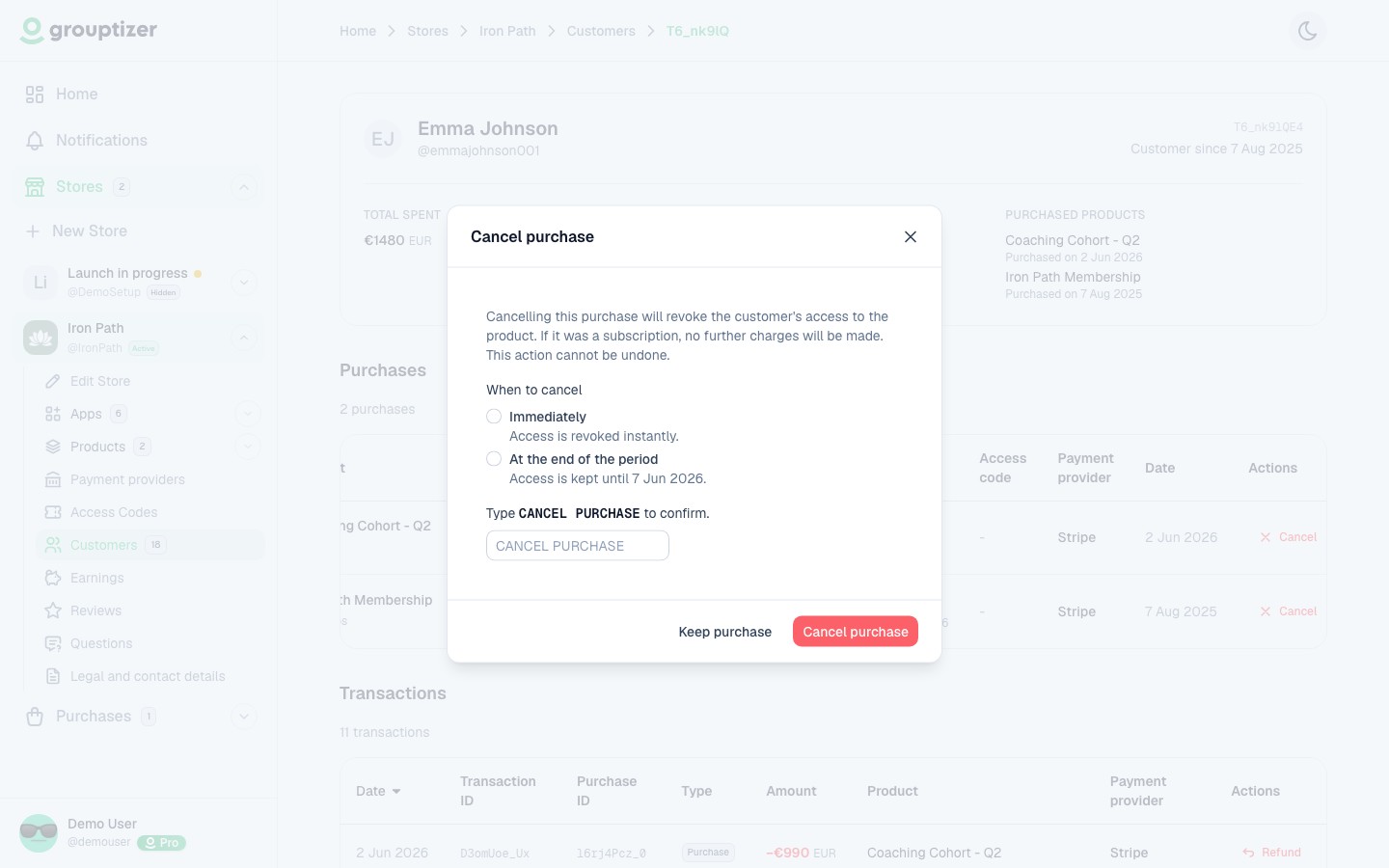
If a subscription is already scheduled to cancel at the end of the period, the Cancel button stays available so you can still force an immediate revocation if you need to (abuse, support escalation). Picking “at the end of the period” again on a subscription that’s already scheduled is a no-op.