

Disconnect Stripe with active subscriptions
Disconnecting Stripe is a one-click action with heavy consequences. Read this carefully before doing it, especially if you have active subscriptions.
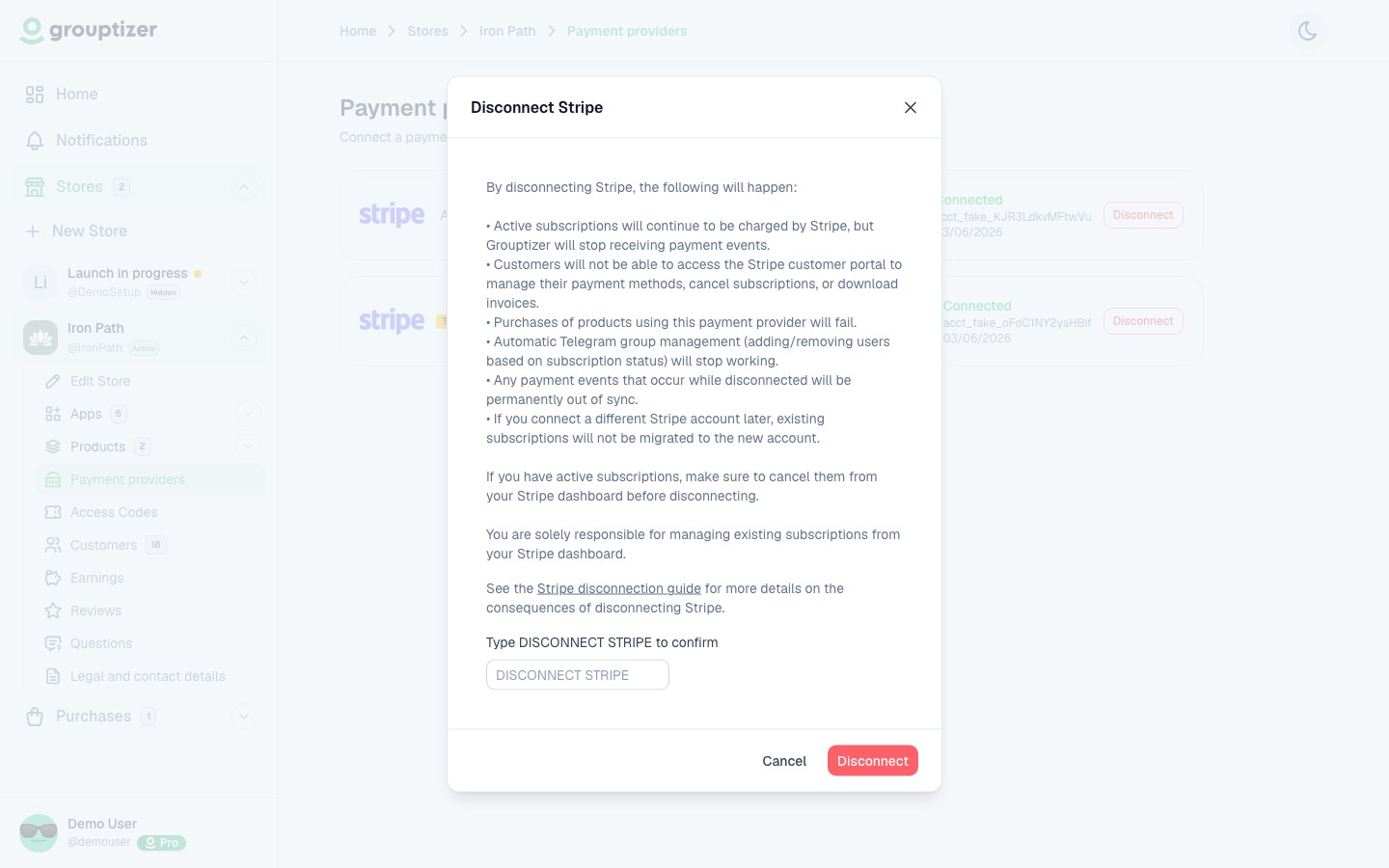
The modal lists the consequences and asks you to type DISCONNECT STRIPE to confirm. The sections below expand on each point.
What disconnecting actually does
Section titled “What disconnecting actually does”- Grouptizer stops being able to create new charges through this Stripe account.
- The connection between your Stripe account and Grouptizer is dropped.
- Existing Stripe subscriptions are not cancelled. Stripe will keep charging your buyers on their renewal dates.
- Buyers stay in your Telegram channels. Grouptizer doesn’t remove anyone on its own.
- Grouptizer stops receiving events from this Stripe account. Renewals, cancellations, refunds and failures will not be reflected on your dashboard.
- Your buyers lose access to the Stripe customer portal from Grouptizer: they can’t cancel subscriptions, update their card, or download invoices.
- New purchases of products with this payment provider will error.
What this means in practice
Section titled “What this means in practice”If you disconnect and walk away:
- Your buyers keep getting charged on their renewal dates.
- They keep their Telegram access (no one removes them).
- They can’t manage their subscription or card from their dashboard.
- You won’t see any of this in Grouptizer because the events aren’t coming in.
Once disconnected, you remain responsible for handling cancellation requests, payment method changes and invoice downloads for your active subscribers. Spanish consumer law (RDLeg 1/2007) requires that cancelling a subscription be at least as easy for the buyer as it was to sign up — handle these requests manually from your Stripe dashboard without delay.
When you might want to disconnect
Section titled “When you might want to disconnect”- You’re closing the business and want to stop new sales.
- You’re switching to a different Stripe account (see Reconnect Stripe with a different account).
What to do before disconnecting
Section titled “What to do before disconnecting”If you have active subscriptions:
- Warn your buyers in advance: once you disconnect, they won’t be able to cancel their subscription, update their card, or download invoices from their dashboard — they’ll have to go through you.
- If you want to stop the charges, log in to your Stripe dashboard and cancel the active subscriptions there (you can pick “cancel at period end” or “cancel immediately”).
- Once they are cancelled, you can disconnect Grouptizer cleanly.
Reconnecting
Section titled “Reconnecting”- Same Stripe account — reconnect from your store’s Payment providers screen. Existing data picks up where it left off.
- Different Stripe account — see Reconnect Stripe with a different account for the implications. Old subscriptions on the previous account stay there.